5. Oprettelse af en session¶
5.1 Begivenheder, sessioner, serier¶
Appen organiserer skydningen i tre niveauer:
- En begivenhed er en skydedag eller en konkurrence — en navngivet mappe med sessioner.
- En session — en disciplin med dens regler, skytter og noter. En session indeholder en eller flere serier.
- En serie er én skydesekvens — den enhed, du faktisk skyder (kapitel 6).
5.2 Valg af begivenhed¶
Øverst på Ny session-siden vælger feltet "Begivenhed", hvilken begivenhed sessionen hører til:
- Som standard er det dags dato (f.eks. 25. juli 2026) — daglig træning kræver ingen navngivning og grupperes naturligt pr. dag.
- Tryk på feltet: det tømmes, og en liste rulles ned — først dagens standardbegivenhed, mærket "standard", derefter dine egne eksisterende begivenheder med deres dato. Vælg en, eller skriv et nyt navn — en ny begivenhed oprettes sammen med sessionen. Lader du feltet stå tomt, bruges dagens standardbegivenhed.
- En begivenhed opstår først, når dens første session oprettes; skriver du et navn og fortryder, efterlades intet. Omvendt forsvinder en begivenhed, hvis sidste session fjernes, fra startlisten.
Begivenheder, som en anden konto har delt med dig, vises på din startskærm som lavendelfarvede fliser med et personmærke (§1.4). Du kan åbne dem og følge deres sessioner, men kun begivenhedens ejer kan tilføje sessioner til den.
5.3 Ny session-siden¶
Tryk på "Ny" på startskærmen (eller på en begivenhedsside, hvor begivenheden så er udfyldt på forhånd — kun ejeren). Siden har titlen "Ny session", og dens titelbjælke rummer en glidekontakt med tre faner; en linje under den angiver, hvad hver fane opretter:
| Fane | Tip | Hvad den opretter |
|---|---|---|
| "Tilpasset" (standard) | "Vælg hver indstilling frit" | Fri træning — én serie, alle parametre kan justeres |
| "Serie" | "En serie efter reglementet" | Ét officielt serieformat, valgt blandt de indbyggede skabeloner |
| "Stævne" | "En hel match som i konkurrence" | Et komplet officielt stævneprogram (flere serier, i rækkefølge) |
Hver fane har samme rygrad, fra top til bund: feltet "Begivenhed" (§5.2), en overskrift "Indstillinger" over fanens indstillingskort, skyttekortet og et link "Tilføj en note", der åbner et felt "Noter" knyttet til sessionen.
Skyttekortet viser én række pr. skytte — en cirkel med forbogstavet, navnet og skivemærket (§3.3) med dets orange meddelelse ("Vælg 1 skive", "Ingen skive fundet"), indtil skiverne er i orden. Uden supervisorabonnement indeholder kortet præcis dig; tilføjelse af skytter er en supervisorfunktion (kapitel 9). Et langt tryk på din række lader dig spille under en anden kontos skytte (§9.3).
Knappen "Start" (afspilningspil, nederst til højre) opretter sessionen. Den forbliver grå, indtil hver skytte har de påkrævede skiver; trykker du for tidligt, vises "Antallet af valgte skiver er forkert", og intet oprettes. Når den er startet:
- en session med én serie (Tilpasset og alle formater på Serie-fanen) starter straks — den direkte skydeskærm åbnes;
- en session med flere serier (stævner) åbner sessionssiden (§5.6), hvor serierne afvikles i rækkefølge.
Kan serien ikke startes på skiverne, tilbyder et panel med titlen "Serien blev ikke startet" ("Serien kunne ikke startes på alle skiver") "Prøv igen" eller "Slet session" — intet er registreret i begge tilfælde (§6.7).
5.4 Fanen Tilpasset — alle parametre¶
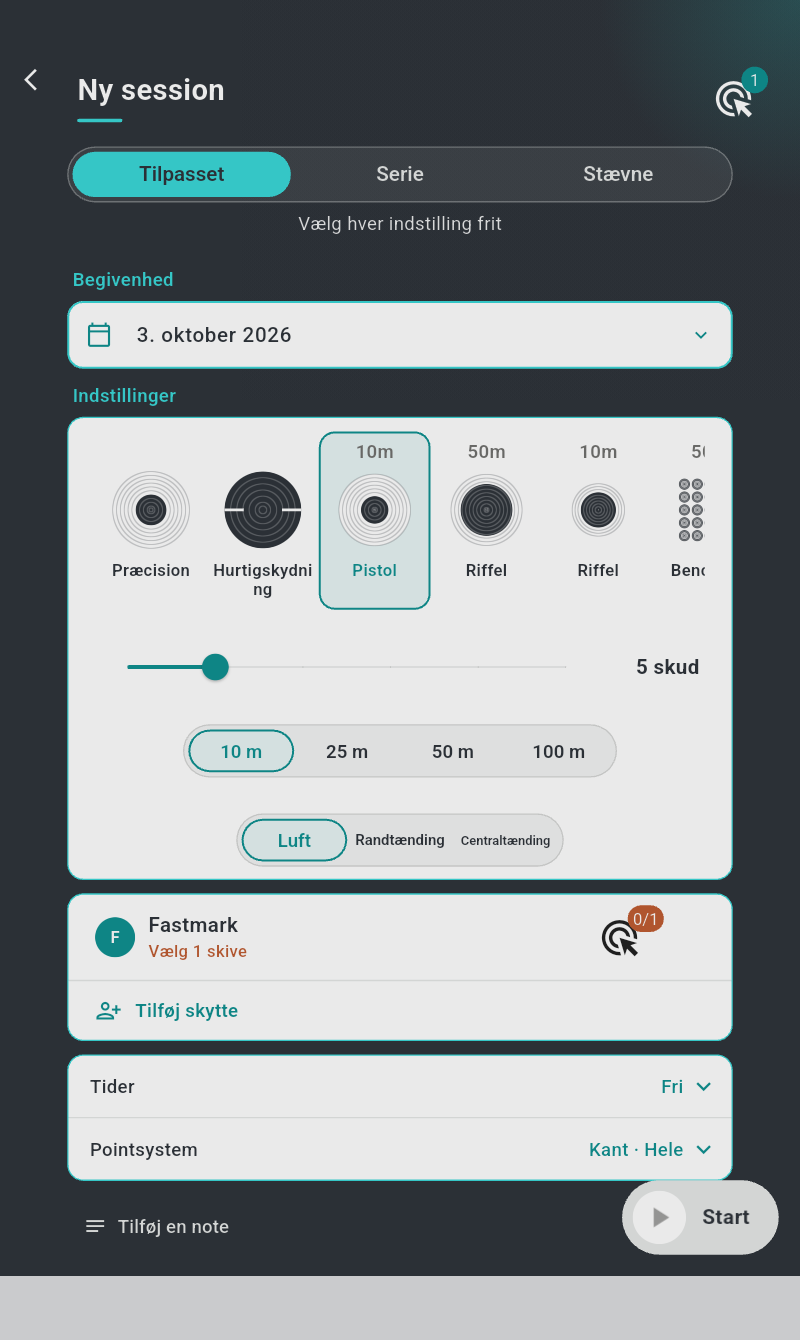
De tilpassede indstillinger huskes: fanen åbner altid præcis, som du sidst forlod den, på alle dine enheder.
Indstillingskortet rummer, fra top til bund:
- Skivebilledet — en række skivefliser (rul den sidelæns). Den afstand, et skivebillede er designet til, står over dets miniature:
| Skivebillede | Bemærkninger |
|---|---|
| Præcision | ISSF 25 m præcisionsskive. Valgfrit afkrydsningsfelt "Formindsket skive (fripistol 25 m)" under rækken (halv størrelse) |
| Hurtigskydning | ISSF 25 m hurtigskydningsskive. Valgfrit afkrydsningsfelt "Formindsket skive (skydeskole 10 m)" |
| Pistol (10 m) | ISSF 10 m luftpistolskive |
| Riffel (50 m) | ISSF 50 m riffelskive |
| Riffel (10 m) | ISSF 10 m luftriffelskive |
| Benchrest (50 m) | Gitter af sigtepunkter med øvekolonner i siderne (§7.4) |
| Benchrest (fritid) (50 m) | Variant af Benchrest-skiven med større gitter |
Et skift af skivebillede fjerner valget af formindsket skive.
- Skud — en glidebjælke med seks positioner: 1, 5, 10, 15, 20 eller 25 skud; værdien vises som "{} skud" (standard 5).
- Afstand — "10 m" / "25 m" / "50 m" / "100 m" (standard 25 m).
- Kaliber — "Luft", "Randtænding" eller "Centraltænding" (standard Randtænding). Kaliberet bestemmer den kuglediameter, der bruges til at tegne hullerne og til Kant-pointgivning (§7.2), og justerer skivens detekteringsfølsomhed.
Et andet kort, under skytterne, rummer to sammenfoldelige rækker — hver viser sin aktuelle værdi i blågrønt og folder sig ud, når der trykkes på den:
- "Tider" — værdien "Fri", "Serier {} s" eller "Pr. skud {} s". Udfoldet:
- "Forberedelsestid" — en valgfri ladefase, før noget starter, 0 = ingen (− / + i trin på 5 s; et langt tryk flytter med 50 s).
- "Ventetid" — en valgfri giv agt-fase (rødt lys) før skydningen; i hurtigskydning er det intervallet mellem fremvisningerne. 0 = ingen (trin på 1 s).
- "Skydetid" — seriens rytme: "Serie" (én tidsbestemt skydefase, en præcisionsserie), "Pr. skud" (én fremvisning pr. skud, en hurtigskydningsserie) eller "Fri" (ingen tidsgrænse overhovedet: serien kører, indtil alle skytter har affyret alle skud). Valg af en rytme forudindstiller tiderne — Serie: 60 s forberedelse, 7 s ventetid, 150 s serietid; Pr. skud: 60 s, 7 s, 3 s pr. skud; Fri: alt 0.
-
"Serietid" (Serie-rytme, trin på 5 s) eller "Tid pr. skud" (Pr. skud-rytme, trin på 1 s) — skydefasens længde eller længden af hver fremvisning. §6.2 viser de resulterende faser.
-
"Pointsystem" — værdien f.eks. "Kant · Hele". Udfoldet to kontakter: "Centrum" / "Kant" — Centrum scorer hullets nøjagtige geometriske centrum, Kant scorer som en tolk på papirskiver: hele kuglehullets bredde tæller, så et hul, der berører en ring, får den rings værdi (standard Kant); og "Hele" / "Decimaler" — Hele dropper hvert skuds decimaler, hele point i ISSF-stil (standard); Decimaler lader tiendedelene tælle, 0 – 10,9 pr. skud.
5.5 Fanerne Serie og Stævne — officielle formater¶
Disse faner vælger blandt de indbyggede officielle skabeloner; i stedet for rå parametre indsnævrer du formatet med nogle få vælgere i indstillingskortet:
- Afstand — "10 m" / "25 m" / "50 m".
- Disciplin — en række fliser, hver med sit piktogram. Den fulde liste:
| Afstand | Serie-fanen | Stævne-fanen |
|---|---|---|
| 10 m | Præcision, Standard | Præcision, Standard |
| 25 m | Sport, Standard, Hurtigskydning, TAR 831 | Standard, Sport, Hurtigskydning, TAR 831 |
| 50 m | Riffel, Fripistol, TAR 820 | Liggende, 3 stillinger, Fripistol, TAR 820 |
- Tid (Serie-fanen, kun hvor disciplinen findes i flere varigheder): 25 m Standard "10s" / "20s" / "150s", 25 m Sport "3/7" / "4mn", 25 m Hurtigskydning "∞" / "4s" / "6s" / "8s", TAR 831 "10s" / "20s", TAR 820 "5mn" / "7mn".
- Kaliber (kun hvor disciplinen tillader flere — 25 m Sport): "Randtænding" / "Centraltænding".
- Stilling (Serie-fanen, kun 50 m Riffel): "Liggende" / "Knælende" / "Stående".
Under skyttekortet viser et oversigtskort præcis, hvad der skal skydes. Dets hoved tæller "{} serier" og "{} skud"; derefter én række pr. gruppe af identiske serier: skivebilledets miniature, serietitlen (f.eks. Præcision 150s, Hurtigskydning 3/7), en detaljelinje med stillingen, "Prøveserie", hvor det er relevant, antallet af skud og "Nødvendige skiver: {}", når der kræves mere end én skive, samt gruppens antal (×2, ×6 …).
Stævneskabelonerne følger de aktuelle ISSF-programmer — inklusive prøveserier og, for 25 m sport, præcisions- og hurtigafsnittene i rækkefølge. ISSF-konforme serier anvender også de officielle tidstolerancer og aktiverer funktionsfejlsproceduren (§7.9).
5.6 Sessionssiden (sessioner med flere serier)¶
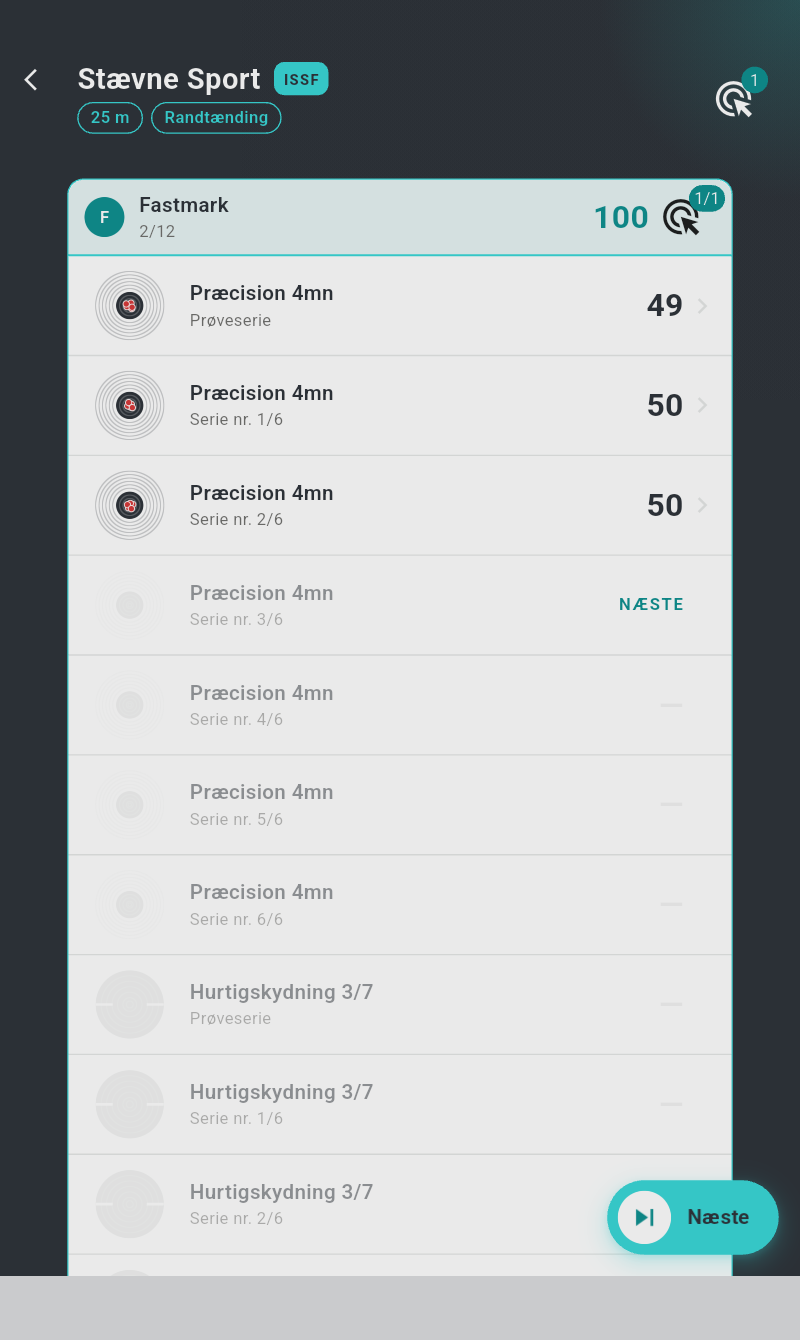
Sessionssiden er kommandocentralen for et stævne. Dens titelbjælke bærer sessionens titel (f.eks. Stævne Standard) med organisationsmærket (ISSF eller TAR) og chips for afstand, kaliber og "Reduceret", hvor det er relevant.
- Én skytte: ét kort. Dets hoved viser skyttens forbogstav og navn, antallet af
gennemførte pointgivende serier (
afsluttede/i alt), den løbende sum (§7.5) og skivemærket for den næste serie. Kroppen viser serierne i rækkefølge — hver række med skivebilledets miniature, der viser skyttens træffere, titlen, en undertitel ("Prøveserie", "Serie nr. {}/{}" eller "Funktionsfejl" for en omskydning) og dens score, når den er skudt. Den næste serie, der skal spilles, er markeret "NÆSTE" i blågrønt; senere serier er nedtonede med en streg. Et tryk på en skudt serie genåbner dens resultater. - To eller flere skytter: en kontakt "Sortér efter placering" (slået til som standard; slået fra viser den skytterne i sessionsrækkefølge) over ét kort pr. skytte, hvert med en placeringscirkel i hovedet (en krone til føreren), navnet og summen, og en række skivebilledminiaturer med scoren, "NÆSTE" eller en streg under hver. Dit eget kort er blågrønt, de andre blå. Sessionens ejer kan åbne enhver skyttes serier; en skytte kan kun åbne sine egne.
- Knappen "Næste" (nederst til højre — kun sessionens ejer, vist så længe en uskudt serie er tilbage) starter den næste serie; den forbliver grå, indtil seriens skiver er tildelt.
- Sessionens kort "Noter" nederst, som kan redigeres på stedet.
Serierne skal skydes i rækkefølge; efter hver serie vender du tilbage hertil (eller lader "Automatisk næste" kæde dem automatisk — §6.6).
5.7 Gentagelse og fjernelse af sessioner¶
- Gentag: når en session med én serie er færdig, bliver handlingsknappen på serieskærmen til "Gentag" — ét tryk opretter en frisk kopi af sessionen og starter den straks. Den hurtigste måde at kæde identiske træningsserier på.
- Fjern: på begivenhedssiden stryger du et sessionskort fra højre mod venstre forbi midten af skærmen — en etiket "Slet" vises under det, mens du stryger. Det fjerner sessionen kun fra din egen konto — dit abonnement på den droppes, så den forsvinder fra dine lister og din statistik. For alle andre abonnenter på en delt begivenhed forbliver sessionen intakt, resultater inklusive; intet ødelægges. En meddelelse "Session slettet" med handlingen "Fortryd" står i 4 sekunder — tryk på den for at få sessionen tilbage. En session, hvis serie kører i øjeblikket, og et challenge-forsøg kan ikke stryges væk. Når en begivenheds sidste session fjernes, forsvinder begivenheden fra din startliste (§5.2).