5. Creating a session¶
5.1 Events, sessions, series¶
The app organizes shooting in three levels:
- An event is a shooting day or a competition — a named folder of sessions.
- A session — a discipline with its rules, shooters and notes. A session contains one or more series.
- A series is one shooting sequence — the unit you actually fire (chapter 6).
5.2 Choosing the event¶
At the top of the New-session page, the "Event" field selects which event the session goes into:
- By default it is today's date (e.g. July 25, 2026) — everyday practice needs no naming and groups naturally by day.
- Tap the field: it clears and a list drops down — today's default event first, tagged "default", then your own existing events with their date. Pick one, or type a new name — a new event is created with the session. Leaving the field empty falls back to today's default event.
- An event only comes into existence when its first session is created; typing a name and backing out leaves nothing behind. Conversely, an event whose last session is removed disappears from the home list.
Events shared with you by another account appear on your home screen as lavender tiles with a person badge (§1.4). You can open them and watch their sessions, but only the event's owner can add sessions to it.
5.3 The New-session page¶
Tap "New" on the home screen (or on an event page, where the event is then pre-filled — owner only). The page is titled "New session" and its title bar holds a sliding switch with three tabs; one line under it states what each tab creates:
| Tab | Hint | What it creates |
|---|---|---|
| "Custom" (default) | "Choose each setting freely" | Free practice — one series, every parameter adjustable |
| "Series" | "A series that follows the rules" | One official series format, chosen from the built-in templates |
| "Match" | "A full match, as in competition" | A complete official match program (several series, in order) |
Every tab has the same backbone, top to bottom: the "Event" field (§5.2), a "Settings" heading over the tab's settings card(s), the shooters card, and an "Add a note" link that opens a "Notes" field attached to the session.
The shooters card lists one row per shooter — a disc with their initial, their name, and the target badge (§3.3) with its orange notice ("Choose 1 target", "No target detected") until the targets are right. Without a supervisor subscription the card contains exactly you; adding shooters is a supervisor feature (chapter 9). Long-pressing your row lets you play under another account's shooter (§9.3).
The "Launch" button (play arrow, bottom right) creates the session. It stays grey until every shooter has the required targets; tapping it too early shows "Number of selected targets is incorrect" and creates nothing. Once launched:
- a single-series session (Custom, and every Series-tab format) starts immediately — the live shooting screen opens;
- a multi-series session (matches) opens the session page (§5.6) where the series are played in order.
If the series cannot be started on the targets, a panel titled "The series did not start" ("Series couldn't be launched on all targets") offers "Retry" or "Delete the session" — nothing has been recorded either way (§6.7).
5.4 The Custom tab — every parameter¶

Custom settings are remembered: the tab always reopens exactly as you last left it, on all your devices.
The settings card holds, top to bottom:
- The target face — a row of face tiles (scroll it sideways). The distance a face is designed for is printed above its thumbnail:
| Face | Notes |
|---|---|
| Precision | ISSF 25 m precision face. Optional "Reduced target (25 m free pistol)" checkbox under the row (half size) |
| Rapid fire | ISSF 25 m rapid-fire face. Optional "Reduced target (10 m shooting school)" checkbox |
| Pistol (10 m) | ISSF 10 m air-pistol face |
| Rifle (50 m) | ISSF 50 m rifle face |
| Rifle (10 m) | ISSF 10 m air-rifle face |
| Benchrest (50 m) | Grid of aiming points with side practice columns (§7.4) |
| Benchrest (recreational) (50 m) | Larger-grid variant of the Benchrest face |
Changing the face clears the reduced-target option.
- Shots — a slider with six positions: 1, 5, 10, 15, 20 or 25 shots; the value reads "{} shots" (default 5).
- Distance — "10 m" / "25 m" / "50 m" / "100 m" (default 25 m).
- Caliber — "Air", "Rimfire" or "Centrefire" (default Rimfire). The caliber sets the bullet diameter used for drawing the holes and for Edge scoring (§7.2), and tunes the target's detection sensitivity.
A second card, under the shooters, holds two folding rows — each shows its current value in teal and unfolds when tapped:
- "Timings" — value "Free", "Series {} s" or "Per shot {} s". Unfolded:
- "Preparation time" — an optional load phase before anything starts, 0 = none (− / + in 5 s steps; a long press moves by 50 s).
- "Waiting time" — an optional attention phase (red light) before shooting; in rapid fire it is the interval between exposures. 0 = none (1 s steps).
- "Shooting time" — the rhythm of the series: "Series" (one timed shooting phase, a precision series), "Per shot" (one exposure per shot, a rapid-fire series) or "Free" (no time limit at all: the series runs until every shooter has fired all shots). Picking a rhythm presets the timings — Series: 60 s preparation, 7 s waiting, 150 s series time; Per shot: 60 s, 7 s, 3 s per shot; Free: everything 0.
-
"Series time" (Series rhythm, 5 s steps) or "Valid time" (Per shot rhythm, 1 s steps) — the length of the shooting phase, or of each exposure. §6.2 shows the resulting phases.
-
"Score system" — value e.g. "Edge · Integer". Unfolded, two switches: "Centre" / "Edge" — Centre scores the exact geometric center of each hole, Edge scores like a paper-target gauge: the full width of the bullet hole counts, so a hole touching a ring gets that ring's value (default Edge); and "Integer" / "Decimal" — Integer drops each shot's decimals, ISSF-style whole points (default); Decimal lets the tenths count, 0 – 10.9 per shot.
5.5 The Series and Match tabs — official formats¶
These tabs pick from the built-in official templates; instead of raw parameters you narrow down the format with a few selectors in the settings card:
- Distance — "10 m" / "25 m" / "50 m".
- Discipline — a row of tiles, each with its pictogram. The full list:
| Distance | Series tab | Match tab |
|---|---|---|
| 10 m | Precision, Standard | Precision, Standard |
| 25 m | Sport, Standard, Rapid fire, TAR 831 | Standard, Sport, Rapid fire, TAR 831 |
| 50 m | Rifle, Free pistol, TAR 820 | Prone, 3 positions, Free pistol, TAR 820 |
- Timing (Series tab, only where the discipline exists in several durations): 25 m Standard "10s" / "20s" / "150s", 25 m Sport "3/7" / "4mn", 25 m Rapid fire "∞" / "4s" / "6s" / "8s", TAR 831 "10s" / "20s", TAR 820 "5mn" / "7mn".
- Caliber (only where the discipline allows several — 25 m Sport): "Rimfire" / "Centrefire".
- Stance (Series tab, 50 m Rifle only): "Prone" / "Kneeling" / "Standing".
Under the shooters card, a summary card lists exactly what will be shot. Its head counts "{} series" and "{} shots"; then one row per group of identical series: the face thumbnail, the series title (e.g. Precision 150s, Rapid fire 3/7), a detail line with the stance, "Sighting series" where applicable, the shot count and "Required targets: {}" when more than one target is needed, and the group's count (×2, ×6 …).
Match templates follow the current ISSF programs — including sighting series and, for 25 m sport, the precision and rapid stages in order. ISSF-compliant series also apply the official timing tolerances and enable the malfunction procedure (§7.9).
5.6 The session page (multi-series sessions)¶
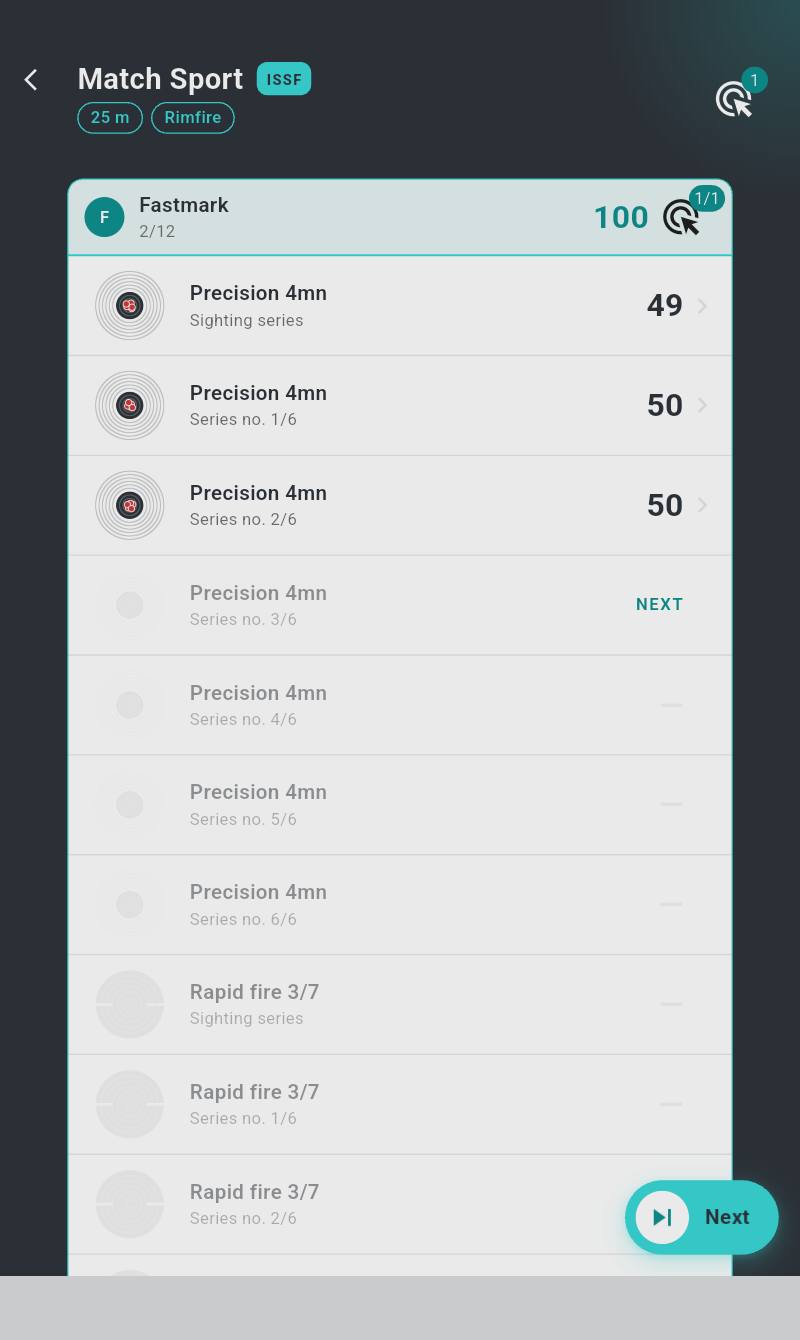
The session page is mission control for a match. Its title bar carries the session title (e.g. Match Standard) with the organisation badge (ISSF or TAR) and chips for the distance, the caliber and "Reduced" where applicable.
- One shooter: a single card. Its head shows the shooter's initial and name,
the count of scoring series completed (
closed/total), the running total (§7.5) and the target badge for the next series. The body lists the series in order — each row with the face thumbnail showing the shooter's hits, the title, a subtitle ("Sighting series", "Series no. {}/{}" or "Malfunctions" for a re-shoot), and its score once shot. The next series to play is marked "NEXT" in teal; later ones are dimmed with a dash. Tapping a shot series reopens its results. - Two or more shooters: an "Order by rank" switch (on by default; off lists the shooters in session order) over one card per shooter, each headed by its rank disc (a crown for the leader), the name and the total, and holding a row of face thumbnails with the score, "NEXT" or a dash under each. Your own card is teal, the others blue. The session owner can open any shooter's series; a shooter can only open their own.
- The "Next" button (bottom right — session owner only, shown while an unshot series remains) starts the next series; it stays grey until that series' targets are assigned.
- The session "Notes" card at the bottom, editable in place.
Series must be shot in order; after each series you return here (or let "Auto next" chain them automatically — §6.6).
5.7 Repeating and removing sessions¶
- Repeat: when a single-series session is finished, the action button on the series screen becomes "Replay" — one tap creates a fresh copy of the session and starts it immediately. The fastest way to chain identical practice series.
- Remove: on the event page, swipe a session card from right to left past the middle of the screen — a "Delete" label appears under it as you swipe. This removes the session from your own account only — your subscription to it is dropped, so it disappears from your lists and your statistics. For every other subscriber of a shared event the session remains intact, results included; nothing is destroyed. A message "Session deleted" with an "Undo" action stays for 4 seconds — tap it to get the session back. A session whose series is currently running, and a challenge attempt, cannot be swiped away. When an event's last session is removed, the event disappears from your home list (§5.2).