3. Connecting targets¶
3.1 Discovery — how targets appear in the app¶
While the app is open in the foreground and Bluetooth is on, it scans continuously. Every powered-on Fastmark target in range appears automatically — no pairing, no setup. The target button in the app bar (target-shaped icon, present on almost every screen) carries a counter badge with the number of targets currently seen; tap it to open the target list. While no target is in sight the badge is hidden, the icon is greyed and the button does nothing.
3.2 The target list¶
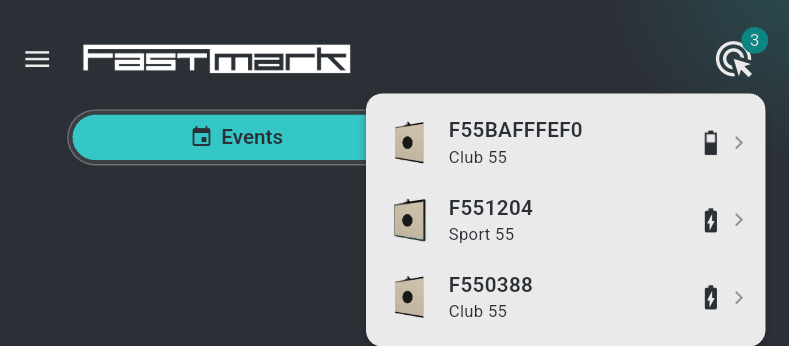
Each row shows the target's photo, its name over its model ("Sport 55", "Club 55", "Sport 17"), then its status:
| Element | Meaning |
|---|---|
| Chip "Other device" | Connected to another phone or tablet (§3.4) |
| Chip "Update" | The target needs a firmware update (§3.6) |
| Chip with a shooter's name | Assigned to that shooter in this app — teal when the shooter is you, blue for another shooter of your session |
| No chip | Free target |
 |
A series is already running on the target (busy) |
 |
The target carries a service notice (§3.5) |
 |
Battery level — red when the target is close to powering off, a charging symbol while it charges |
Tapping a row opens that target's page.
3.3 Assigning a target to a shooter¶
Sessions are played on targets by assigning them to a shooter. In the shooters
card of the New-session page, each shooter's row carries a target badge at its
right showing assigned/required (for example 0/1) — orange until the
shooter has the required number of targets, teal when the count matches. While
the count is wrong, a notice under the shooter's name says what to do:
"Choose {} target" / "Choose {} targets", "Remove {} target" /
"Remove {} targets" when too many are assigned, or "No target detected"
when the app sees no target at all (the badge is then disabled).
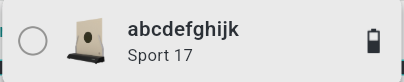
Tap the badge to open the selection list — the target list of §3.2 with a tick disc in front of each row showing the target's assignment state:
-
Teal disc with a tick — assigned to this shooter. Tap to release it.

-
Empty ring — free; tap to assign. The app connects to the target immediately and the disc turns teal.
-
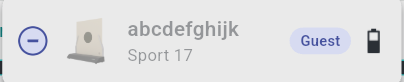
Blue disc with a dash — assigned to another shooter of this session.
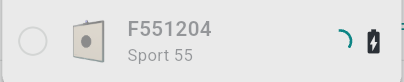
A target can only be selected if all of the following hold — otherwise its row is greyed out and does not respond:
- It is free (no device connected to it) and idle (no series loaded on it).
- Its firmware matches the app (§3.6) — a target whose firmware is older or newer than the version this app carries is visible but not selectable.
- The required target count for this discipline has not been reached yet.
- One target per device: without a supervisor subscription, only one target can be assigned across the whole app. Driving several targets at once requires supervisor access (chapter 9).
Removing a shooter from the session releases their target automatically.
3.4 One connection at a time¶
A target accepts exactly one connected device. While one phone is connected, other phones still see the target in their list with the "Other device" chip but cannot select it. This is by design, to avoid another user disturbing the session start.
3.5 The target page¶
Open it by tapping the target's row in the target list. Its title bar shows the target's name and model; below, from top to bottom:
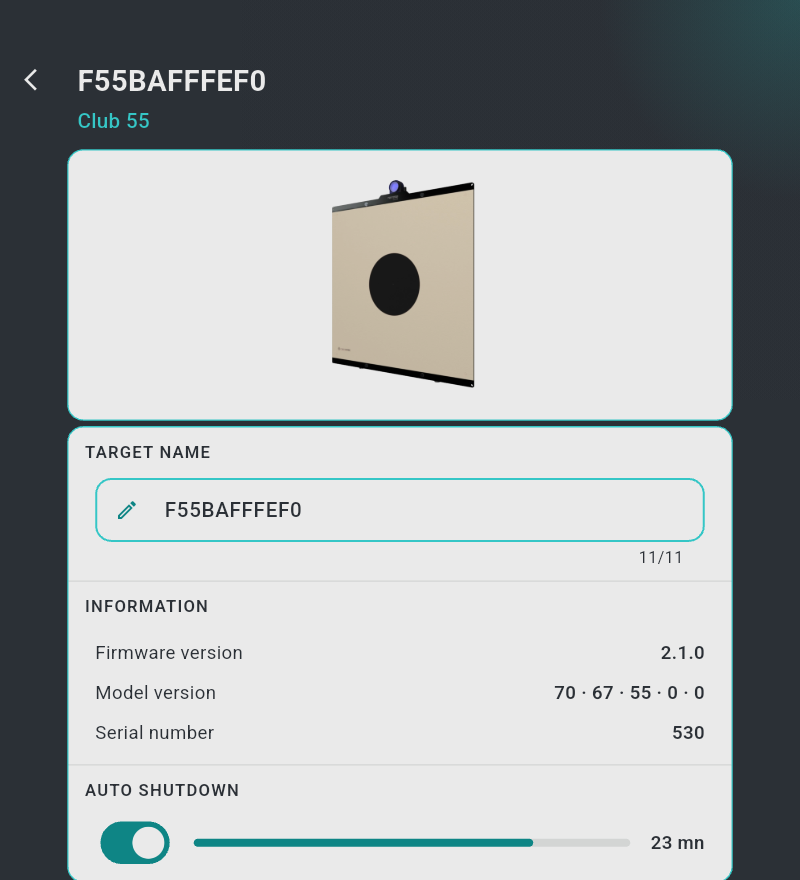
- Photo card — the product photo. When a shooter of this phone holds the
target, a strip reads "Connected ·
" and, as long as no series is running, a "Release target" button releases the link so another device can take the target over. - Notices — shown only when relevant, each with a warning icon:
- a service notice published by Fastmark for this model or this specific unit (for example a maintenance advisory), shown verbatim — the warning triangle also shows on the target's list row;
- "requires firmware version X.Y.Z" with the "Firmware update" button (§3.6);
- "Obsolete version of the application, please update from the store" when the target's firmware is newer than this app (§3.6);
- "Connected to another device. Disconnect from the other device or restart the target to free it" when another phone holds the target — the name field, the auto-shutdown switch and the update button are disabled until it is freed.
- "Target name" — a text field limited to 11 characters (an accented letter
counts for two; the counter reads
n/11). The new name is sent to the target when you tap outside the field; leaving it empty keeps the previous name. The name is stored in the target, and a rename made from another phone shows up here as well. - "Information" — "Firmware version" (in orange with a warning icon when it does not match the app's), "Model version" and "Serial number".
- "Auto shutdown" — switch controlling the target's 30-minute idle shutdown, with a progress bar and the remaining minutes (§2.6).
The page closes by itself if the target disappears (powered off or out of range).
3.6 Firmware updates¶
Targets are kept up to date through the app — update files ship inside the app itself, so no separate download is needed.
When the app discovers a target whose firmware is older than required, it opens that target's page automatically and shows:
"requires firmware version X.Y.Z"
with a "Firmware update" button. Until the update is done the target is visible — its list row carries the "Update" chip — but cannot be assigned to a shooter: updating is not optional.
To update:
- Make sure the target has a reasonable battery level (charge it if the icon is red).
- Tap "Firmware update". A progress dialog titled "Firmware update" shows the transfer percentage; keep the phone near the target and the app open.
- On completion the dialog shows "Data transmitted" and closes after a few seconds; the target blinks three times and reboots itself with the new firmware.
- The target briefly disappears from the target list, then reappears within a few seconds — now up to date and selectable.
If the transfer fails ("Error"), the target keeps its old firmware and keeps working as before; simply try again. See §11.5.
The opposite case — the app is too old: if a target reports newer firmware than the app knows, the target page shows "Obsolete version of the application, please update from the store" and the target cannot be selected. Update the app; the target is fine.