9. Supervisor mode¶
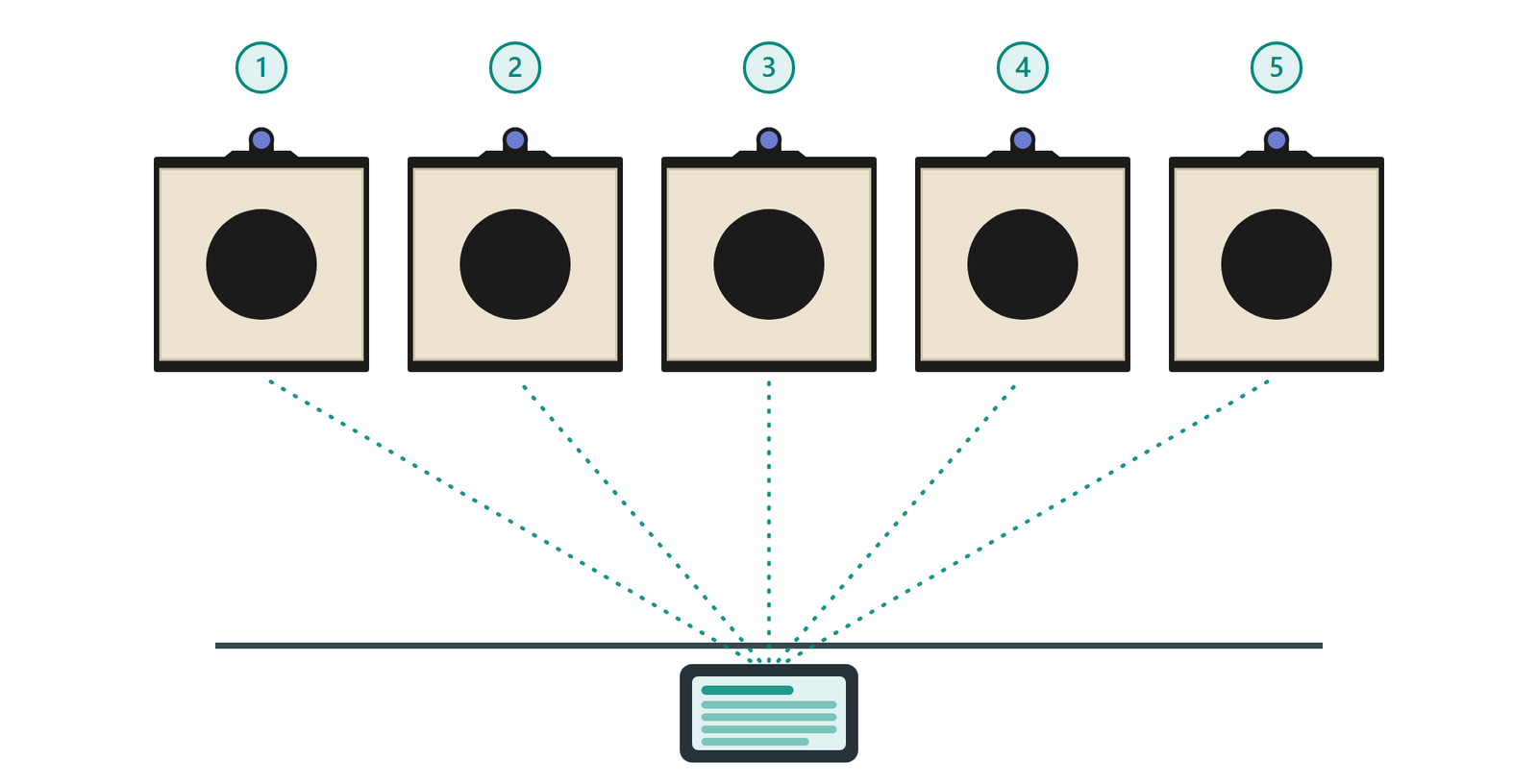
9.1 What supervisor mode lets you do¶
Supervisor mode lifts the app's one-shooter, one-target limit and turns one device into a range controller. Concretely, it is what you need to:
- shoot the disciplines played on several targets at once — ISSF 25 m rapid fire is shot on five targets, all driven by your device (§9.4);
- run a training session or a group challenge — one series launched once for several shooters, the whole line driven from the trainer's device, every score coming back to it live (§9.2);
- show the results live on additional screens around the range (§9.5).
However many targets are on the line, the app drives them as one: a single synchronized sequence, the range commands played once for everyone, and live per-shooter scoring. How many targets one device can drive depends on the device: most current phones and tablets handle at least five at once, recent models ten or more.
Supervisor mode is enabled by a subscription on your Fastmark account (§4.7): the account carries a supervisor validity date and the list of registered targets — the serial numbers of the targets you may drive simultaneously. Both are shown in the "Supervisor mode" group of the User page. (The first year of the subscription is included with the purchase of a pack of five Club 55 targets or more.) Without it, the app is limited to one shooter row and one target. Supervisor mode is reserved for the Club 55: only Club 55 targets can be registered.
9.2 Several shooters — trainings and challenges¶
A multi-shooter session serves the trainer as much as the challenge organizer: a trainer drives the session for their shooters and follows everyone's results on their own device; a challenge launches the same series once for the whole group and collects every score in one place. Either way, with supervisor access the shooters card on the New-session page gains the controls for it:
- an "Add a shooter" row at the bottom of the card adds a shooter — added shooters appear as "Guest" entries, each with their own target badge, result card and scores;
- a × at the right of every row but the first removes that shooter (their target is released automatically).
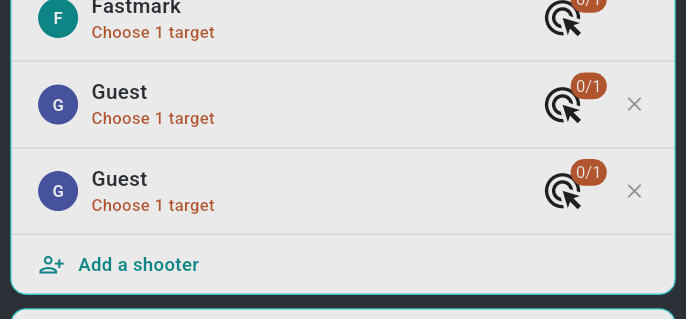
Assign one target to each shooter through their badge, exactly as in
§3.3 — every target must be in your registered
targets list, and each shooter's badge (assigned/required) must be teal
before launch. With a whole line of targets to tell apart, give each target the
name of its firing point (§3.5) — the assignment
stays unambiguous.
During the series the app runs all targets on one synchronized clock: phases change together on every target (within a few milliseconds), and each shot is credited to the shooter whose target reported it. If one target fails or powers off mid-series, only that target is released — the rest of the line keeps shooting (§6.7).
Every shooter gets their own results everywhere: the series screen's "Overview" (§7.5) ranks them live, the session page shows a card and total per shooter, and each has their own hits list. Tap a shooter's card in the overview to follow that shooter alone.
To let someone play under their own account instead of as "Guest", select their shooter (§9.3).
9.3 Selecting a shooter — playing under one's own account¶
A "Guest" keeps its results inside your session only. Select an existing Fastmark account's shooter instead, and the session is played under that person's identity: their name on the result cards, and every shot recorded in their own account's history and statistics. Any signed-in account can do this, supervisor or not:
- Long-press the shooter's row in the shooters card to open the "Select shooter" panel. It lists your own shooter first, then every shooter already shared with you, most recently used first — tap one to select it.
- To add someone new, the other person opens their User page and taps "Show my code" in the "Shooter select" card (§4.3). The app displays a 4-digit code with a countdown — it is valid for 10 minutes.
- Type that code in the panel's "Enter a share code" boxes (this step needs internet). The shooter is added and selected; an expired or mistyped code shows "Invalid or expired code".
A code has to be exchanged only once: the shooter stays available in the panel afterwards, and the sharing works both ways — each of you can add the other.
Withdrawing the sharing: Settings → Others → "Revoke" removes your shooter from all accounts you shared it with, after the confirmation "Revoke all sharing?" — "Remove your shooter from all accounts you shared it with?" — the button then reads "Access revoked". To share again, hand out a new code.
9.4 Several targets for one shooter¶
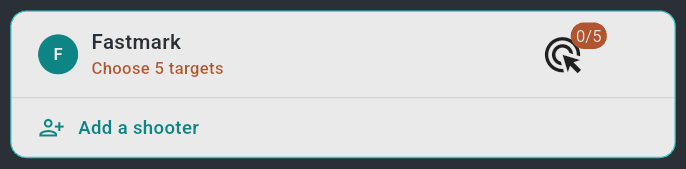
Some disciplines are played simultaneously on several targets; driving them all from one device is the other thing the supervisor subscription unlocks. The shooter's row states how many targets the discipline requires — "Choose 5 targets" — and the badge counts them; assign that many, exactly as in §9.2, and it turns teal.
Today's use case is ISSF 25 m rapid fire, shot on a bank of five targets:
the badge reads 0/5, and once all five are assigned the series drives the
bank as one — the phases turn together, and every hit, whichever target caught
it, lands on that shooter's single result card.
9.5 Live results on other screens — viewers¶
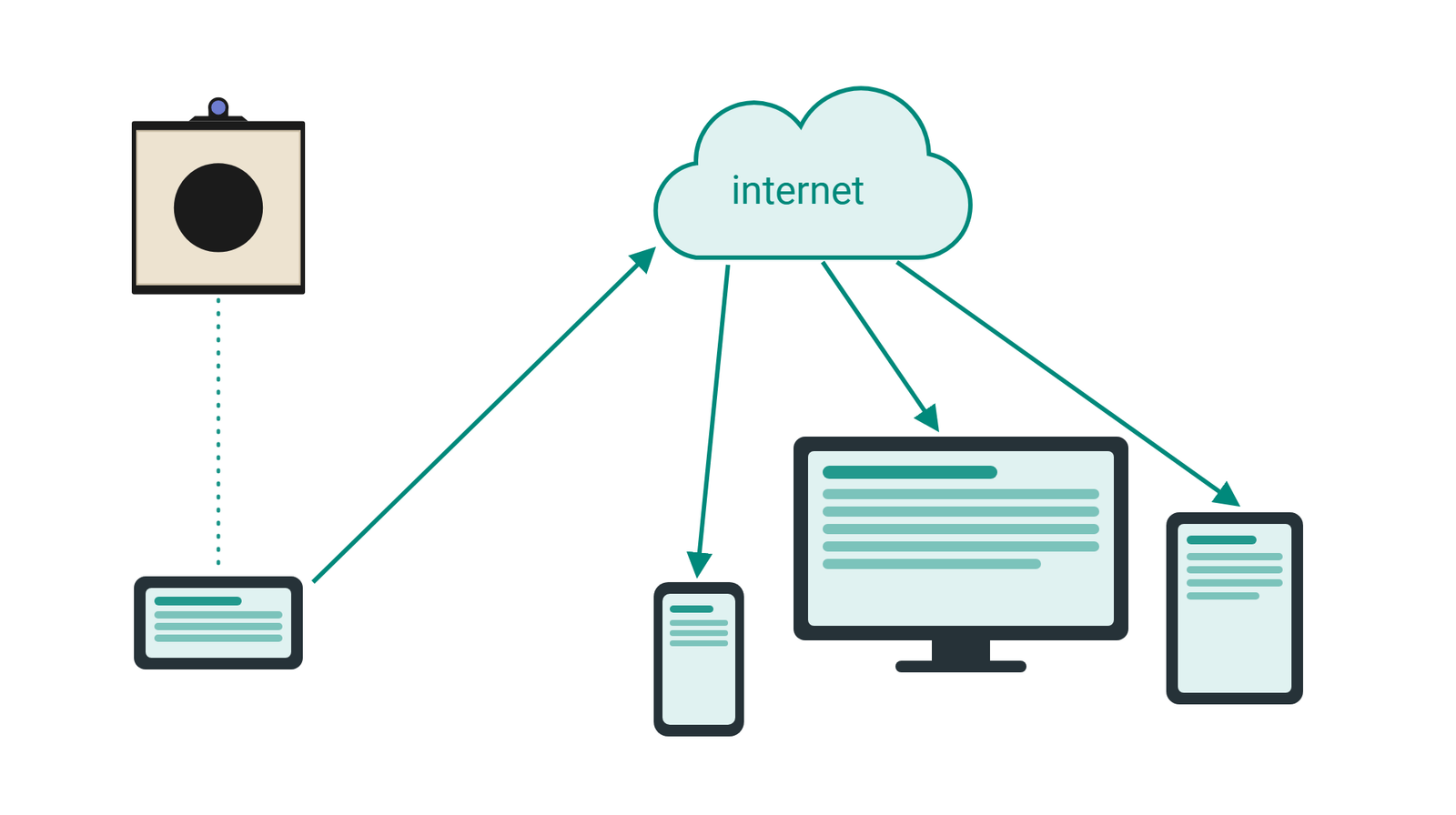
Everything the supervisor's device scores is synchronized through the cloud, so any other device signed in to the same account shows the running series live, read-only (§4.5) — shots and scores appear as they are fired. Every device involved needs an internet connection. For a large display visible to the whole range, install the app on a smart TV that runs Android apps, or mirror a phone or tablet onto the screen.
9.6 Passive mode — a device bolted to one firing point¶
Passive mode dedicates a viewer to a single target — typically a tablet permanently installed at one firing point of a supervised range, which must ignore everything happening on the other lanes.
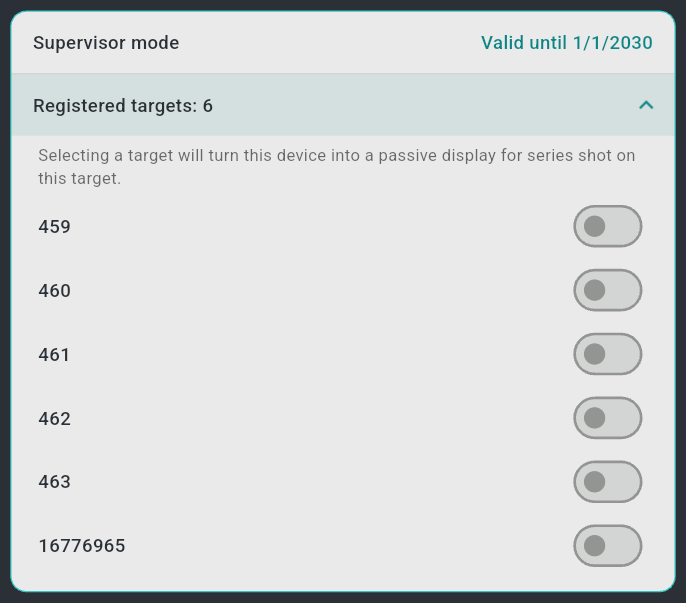
- Enable: User page → "Supervisor mode" → expand "Registered
targets:
" → turn on the switch of the target this device belongs to. (One target only; the other switches disable. The list's own caption says it: "Selecting a target will turn this device into a passive display for series shot on this target.") - Effect: the home screen is replaced by the passive display, tagged "PASSIVE" in its title bar: a large target drawing with the target's name, its model and serial number, a status chip — "In range · good signal", "In range · weak signal" or "Target out of range" — and the line "This screen will show the series shot on this target." The device now ignores sessions pushed onto other targets: it auto-opens only series running on its own target (§4.5), showing the shooter firing on it, and it acts purely as a spectator display — a passive device never becomes the master and cannot start, drive or stop a series.
- Disable: tap "Leave passive mode" at the bottom of the display and
confirm with "Leave" ("This device will no longer open the series of
target
automatically and will show your events again. You can turn it back on from the user page." ), or turn the switch off on the User page. The normal home screen returns.
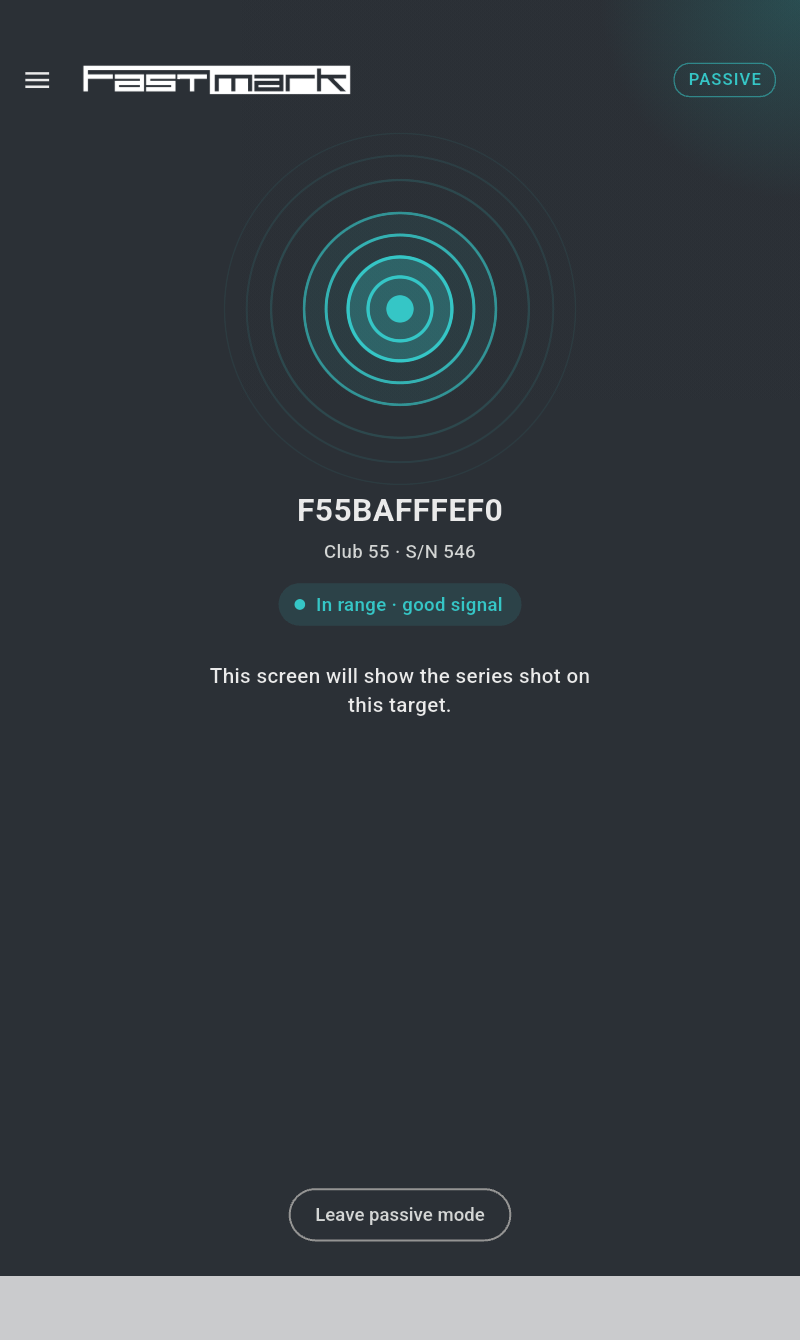
The setting is per-device and survives app restarts.