1. Getting started¶
1.1 What you need¶
- A Fastmark target (see chapter 2 for the models).
- A phone or tablet running Android or iOS, with Bluetooth switched on.
- An internet connection for the very first launch of the app. After that, the app works fully offline; internet is only needed again to sign in to an account and to synchronize your results.
1.2 Installing the app¶
Install Fastmark Sport from the Apple App Store or Google Play Store. It is free.
When the app is first opened, the operating system asks for permission to use Bluetooth (and, on Android, the nearby-devices/location permission that Bluetooth scanning requires). Accept these requests — without them the app cannot see any target.
1.3 First launch¶
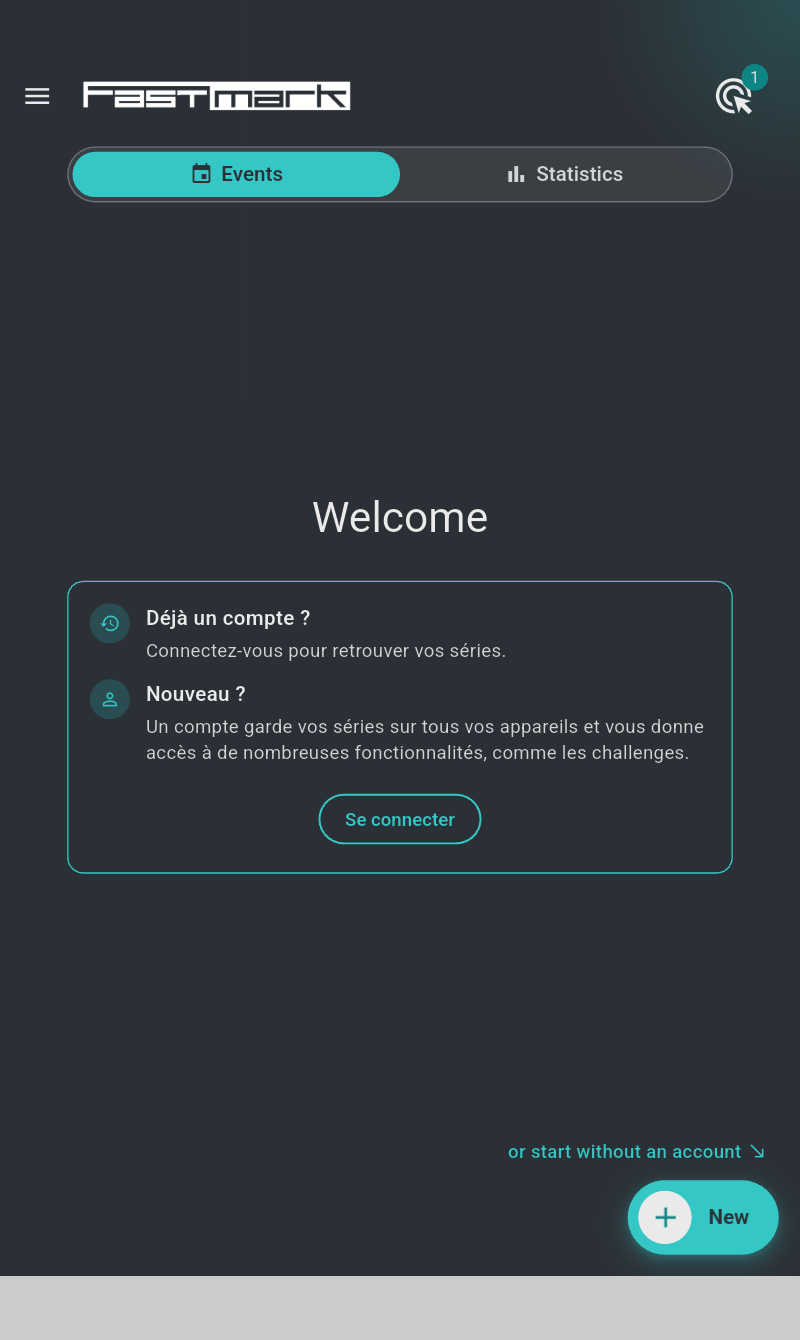
The first launch needs an internet connection because the app creates its private device profile and downloads the official shooting templates; this takes a few seconds, then the home screen is ready. While it loads, the home screen is shown greyed out with a spinner. Later launches are faster and work offline.
Three situations can prevent the first launch from completing:
- "Invalid version" — your installed app is older than the minimum version the service accepts. The screen reads "Obsolete version of the application, please update from the store": update the app from the store.
- No internet on the very first launch — the screen reads "First initialisation of this application needs an internet connection" and the app retries every 3 seconds until a connection is available. Connect to the internet and the startup completes by itself.
- "Configuration has changed. Please close and restart the application." — the service configuration was updated while the app was running. Close the app completely and open it again.
You do not need to create an account to use the app: it starts on a private device profile and everything in this manual up to chapter 4 works without signing in. Until you sign in, the home screen greets you with "Welcome" and a card that reads "Already have an account?" — "Sign in to get your series back." — and "New here?" — "An account keeps your series on all your devices and gives you access to many features, such as the challenges." — with a "Sign in" button. At the bottom right, "or start without an account" points at the "New" button: tap it and shoot right away. Signing in adds synchronization across devices, sharing and the challenges — see chapter 4.
Occasionally Fastmark publishes a service message: it opens as a panel titled "Fastmark" at startup, dismissed with "Got it".
1.4 The home screen¶
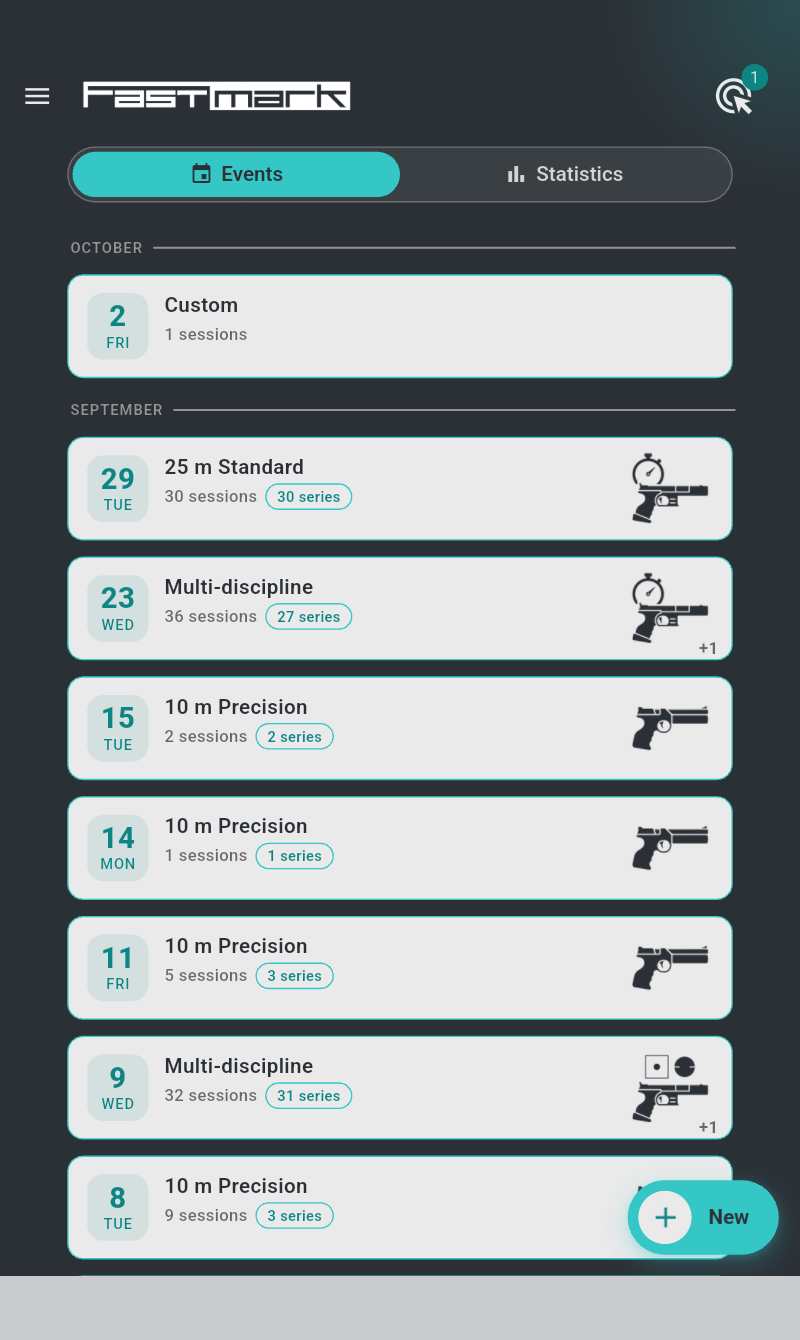
From top to bottom:
- App bar — the menu icon on the left, the Fastmark marque, and on the right the target button (a target-shaped icon) with a counter badge showing how many targets the app currently sees. The badge is hidden and the icon greyed while no target is in sight. Tapping it lists the discovered targets (see chapter 3). When Bluetooth is off or its permission is missing, the button becomes a Bluetooth-disabled icon — tap it to fix the problem in place (§11.2).
- Two tabs — "Events" (calendar icon) listing your shooting days, and "Statistics" (chart icon) showing your progress per discipline (chapter 8).
-
The events list — newest first, grouped by month: a month heading for the current year (OCTOBER), month and year for earlier years (SEPTEMBER 2025). Each event is one tile:
- a calendar leaf on the left with the day number over the weekday — today's leaf is filled dark;
- the title: the event's name, or — when the event still carries its default date name — the discipline shot in it ("Custom" if it only holds custom sessions, "Multi-discipline" if several disciplines were shot);
- a second line with the "{} sessions" count, followed by chips counting its official sessions: "{} match" / "{} matches" and "{} series";
- on the right, the pictogram of the most-shot discipline, with a +n mark when other disciplines were shot in the same event.
Events owned by another account appear with a lavender tile and a badge on the leaf: a cup for a challenge (chapter 12), a person for an event shared with you.
-
The "New" button (bottom right, a + with the label "New") — creates a new session (chapter 5). When you are signed in but have no event yet, the empty list reads "Start a new session with New".
On a wide screen (tablet in landscape, 840 px or more) the menu is shown permanently as a left panel and the menu icon disappears.
1.5 The menu¶

The menu is the app's side panel: swipe right from the left edge, or tap the menu icon at the top left of the app bar. Tap anywhere outside the panel to close it. From top to bottom:
| Entry | Opens |
|---|---|
| Your identity block — a disc with your initial, your user name, and under it your email address when signed in or "Not connected · Sign in" when not | The user page — account, sign-in, supervisor status (chapter 4) |
| "Challenges" (gold cup icon, with a "New" badge) — only shown while at least one challenge is open to you | The challenges page (chapter 12) |
| "Help" | The help page: a link to this manual and the guided target troubleshooting (§11.9) |
| "Settings" | The settings page (chapter 10) |
| "v4.2.0 · About Fastmark" (footer, with the installed version) | The app version and licence information |
1.6 Your first session, step by step¶
- Power on the target — press and hold its switch until the LED lights up (steady dim blue). Details in chapter 2.
-
Open the app. Within a couple of seconds the target button's counter badge shows 1.

-
Tap "New" to create a session. The "Custom" tab is selected by default — it is free practice with every parameter adjustable ("Choose each setting freely").
-
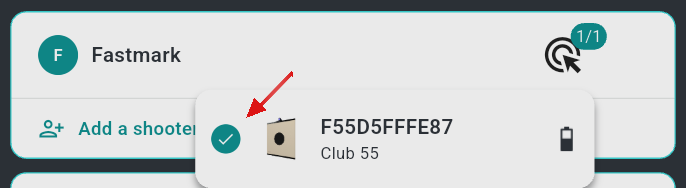
In the shooters card, your row reads "Choose 1 target" in orange. Tap the target badge at its right and select your target in the list that opens. The badge turns teal (1/1) and the notice disappears.
-
Tap the "Launch" button (play arrow). The live shooting screen opens and the sequence starts (chapter 6).
- Shoot. Each impact appears on the target face within a fraction of a second, with its score.
- Tap the "Stop" button when you are done (or let the timer run out). Your series is saved automatically.
1.7 Where results live¶
Everything you shoot is stored on the device immediately and synchronized in the background. To review a past session: home screen → tap the event (shooting day) → tap the session → tap a series. Scores, impact positions, statistics and notes are all kept — see chapter 7 and chapter 8.